Your PDF reader download is on the way
Your pdf reader toolchain is on its way from the official Windows release door. The next hour covers finishing winget or the install.exe, confirming SumatraPDF opens, opening a short sample once, skipping random setup ads, and updating through the same door you used to install.
By PDF reader editorial team Current release SumatraPDF current, published April 6, 2026
Download SumatraPDF current
Pick your system and the download starts.
winget install -e --id SumatraPDF.SumatraPDFOr take SumatraPDF-*-64-install.exe from sumatrapdfreader.org download page.
Two asks while the installer lands
If the project helped you, star sumatrapdfreader/sumatrapdf on GitHub so other people find the real source repo.
Follow new builds via the releases feed when the template publishes one, and re-check the project download page for install.exe names.
The first hour with a PDF reader
Work the eight steps in order so you do not redo settings later. Finish the install before you chase themes. Confirm the window opens before you blame the download. Open one trusted short PDF before a huge archive. Updates use the same winget id or official install.exe you already trust. Longer install context: install on Windows, winget, and for this computer.
What success looks like
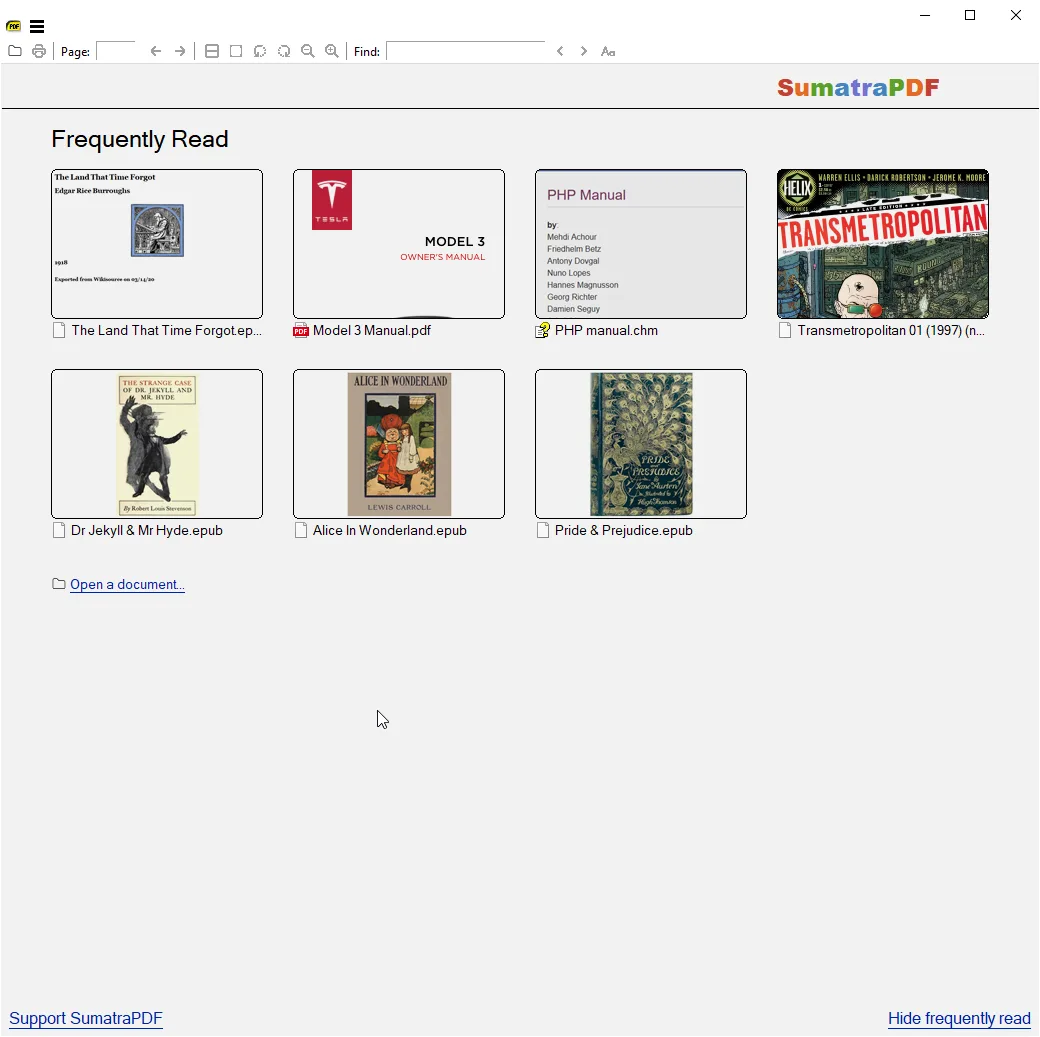
You are done with the first hour when SumatraPDF opens, a sample PDF shows pages, and Find works on a text PDF. Deepen with guides when you compare Adobe Reader or learn formats.
If you arrived from a commercial brand search, read the comparison after the test open works. Licensing and file location differ; invented price tables do not help. Compare: vs Adobe Reader, guide vs Adobe Reader.
Common first-hour mistakes
Stacking winget and a second install.exe into two folders wastes time when you later wonder which Start menu entry opened. Prefer one install location. Saving personal documents inside Program Files makes upgrades messy.
Fetching a single-purpose helper from a search ad is the same class of mistake as fetching the setup from unofficial wrappers. The official install.exe is the desktop viewer for reading work. Releases list: releases. GitHub layout: GitHub.
Borrowing a locked-down lab PC can block winget and unknown installers. Stop rather than forcing a helper installer. Use a machine you control when you need a clean path.
Documents and backups
Keep working files in Documents or another folder you already back up. Avoid leaving the only copy on a borrowed Desktop. When you share a PDF with someone else, keep your own copy so a later edit does not start from a missing attachment.
After the hour
Next useful reads: open a PDF, formats and Find, Windows setup, vs Adobe Reader, and the guides index. Official docs on the project manual cover deeper topics than this install page.
Internal links: home, releases, GitHub, download safe, install.exe or winget, how to install winget, Windows setup.
Quiet Windows checklist
Confirm App Installer from Microsoft when the package manager command is missing. Reopen Terminal after App Installer lands, then retry the documented line. Checksums, when published, live next to assets on the official download page. Read COPYING on the project site before you redistribute a modified build under GPL terms.
Keep the first pass short. Open a disposable document, Find once, and confirm the page canvas. Prefer the same update door later so Start Menu shortcuts stay honest after upgrades.
Licence and update habits
Upstream licence text is GPL-3.0 on the official site. Winget locale language matches that free software story for the desktop Windows build. Prefer one install door per PC.
When fleet policy wants a manual install.exe, take it from the same official download page winget already wraps. Stop if a page asks you to disable SmartScreen for an unknown publisher before the official package arrives.
When something fails
If SumatraPDF is missing from Start, confirm the setup finished and avoid downloading a second renamed installer. If Find looks wrong, reopen the document rather than stacking mirrors. Safety and first-run guides deepen those checks without inventing competitor prices.
Related routes cover releases, GitHub source overview, download-safe habits, for-this-computer mapping, and vs Adobe Reader. Home keeps the Windows install command with a Copy control.
Frequently asked questions
Where is SumatraPDF after install?
Open Start and launch SumatraPDF. If missing, confirm the setup finished and prefer winget id SumatraPDF.SumatraPDF or SumatraPDF-*-64-install.exe from official downloads. Prefer winget id SumatraPDF.SumatraPDF or the current SumatraPDF-*-64-install.exe from the project download page. Confirm App Installer when winget is missing, then retry the same command on Windows. Skip Softonic-style wrappers that rename the setup before the official file arrives.
Can I edit without uploading?
Yes. This pdf reader path keeps source and export on your machine after a normal Windows install. Prefer winget id SumatraPDF.SumatraPDF or the current SumatraPDF-*-64-install.exe from the project download page. Confirm App Installer when winget is missing, then retry the same command on Windows. Skip Softonic-style wrappers that rename the setup before the official file arrives.
What winget id should I use?
SumatraPDF.SumatraPDF. Manual default is SumatraPDF-*-64-install.exe from the project download page. Prefer winget id SumatraPDF.SumatraPDF or the current SumatraPDF-*-64-install.exe from the project download page. Confirm App Installer when winget is missing, then retry the same command on Windows. Skip Softonic-style wrappers that rename the setup before the official file arrives.